
Before you begin
You will need:
- An active FreJun account
- Access to your account Settings
Where can I find my Client ID and Client Secret?
Your Client ID and Client Secret identify your application to FreJun. You need them to generate access and refresh tokens, and to set up webhooks. You can find both under Settings > Developer in your FreJun account.
Who can access this?
The Developer tab is available only to users with an Owner or Admin role. If you are logged in as an Agent, you will not see this tab. Please ask your account Owner or Admin to retrieve the credentials for you, or to have your role updated.
You will also need an active FreJun account.
Step 1 — Open the Developer tab
Log in to your FreJun account at product.frejun.com.
Go to Settings.
Open the Developer tab.
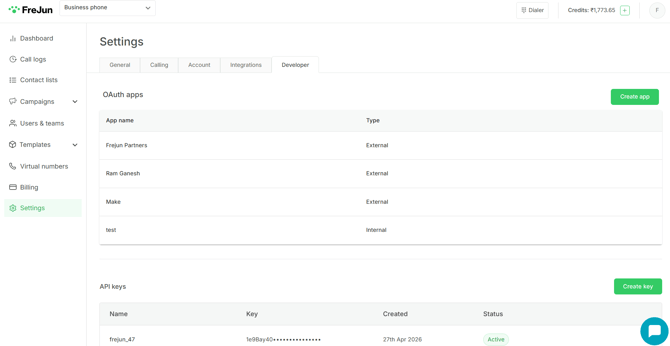
You will see two sections on this page: OAuth apps at the top, and API keys below it.
Step 2 — Open your app
If you already have an app
Under OAuth apps, click the name of your app in the list.
You can have more than one app on the same account, so if several are listed, make sure you open the one your integration is using.
If you do not have an app yet
1. Under OAuth apps, click Create app.
2. Enter an App name to identify your application.
3. Enter your Redirect URL — the URL users are sent to after they grant access to your app.
4. Click on Create app.
Step 3 — Copy your Client ID and Client Secret
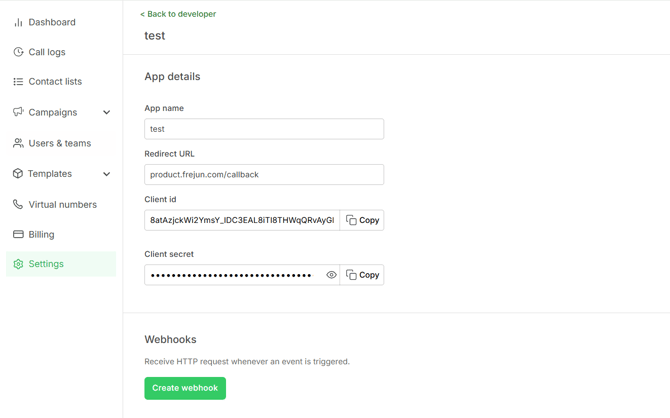
Inside the app, under App details, you will find the following field
|
Field |
Description |
|
App name |
The name you gave your application |
|
Redirect URL |
Where users are redirected after granting access |
|
Client id |
Publicly identifies your application to FreJun |
|
Client secret |
Authenticates your application — keep this confidential |
To copy them:
- Client id — click the Copy button next to the field
- Client secret — it is masked by default. Click the eye icon to reveal it, or click Copy to copy it without displaying it on screen
------------------------------------------------------------------------------------
Looking for a simpler option? Use an API key
If your integration is server-to-server and does not need an end-user consent screen, an API key is a simpler alternative to the full OAuth 2.0 flow.
API keys are managed on the same Settings > Developer page, in the API keys section below your OAuth apps:
- Click Create key
- Give the key a name
- Your key will appear in the list, along with its creation date and status
Related articles
- FreJun API — Setup and Authorization: https://frejun.com/docs