
Using Zoho CRM Workflow Rules and Webhooks, you can automatically:
- Create a contact in FreJun when a new Lead or Contact is added in Zoho CRM
- Update the matching contact in FreJun whenever that record is edited in Zoho CRM
You need to create two separate workflow rules: one for the Leads module and one for the Contacts module.
Before you begin- Admin access to your Zoho CRM account (or a role that can create Workflow Rules)
- An active FreJun account
- Phone numbers stored in the Phone and/or Mobile fields in Zoho CRM
Part 1: Set up the webhook for Leads
Step 1: Open Workflow Rules
- Log in to Zoho CRM.
- Click the Settings icon (the gear icon next to your profile picture).
- Under Automation, click Workflow Rules.
- Click Create Rule.
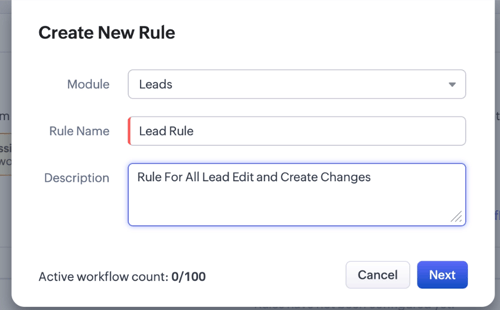
Step 2: Name the rule
- Module: Leads
- Rule Name: Any name you like, for example
FreJun Lead Sync - Description: Optional
Click Next.
Step 3: Set when the rule runs
In the WHEN section:
- Execute this workflow based on: Record Action
- Select Create or Edit
- Turn on Repeat this workflow whenever a Lead is edited
Click Next.
Step 4: Choose which records it applies to
Under Condition, select All Leads.
Step 5: Add the webhook
Under Instant Action:
- Click the dropdown.
- Select Webhooks.
- Set Method to
POST. - In URL to Notify, paste:
https://api.frejun.com/api/v2/integrations/zoho-webhook/Step 6: Add the request body
In the Body section:
- Type: Raw
- Format: JSON
Copy and paste this JSON exactly:
{ "contact_name":"${Leads.Lead Name}", "contact_number":"${Leads.Phone}", "mobile_number":"${Leads.Mobile}", "owner":"${Lookup:Lead Owner.Email}", "company":"${Leads.Company}" } 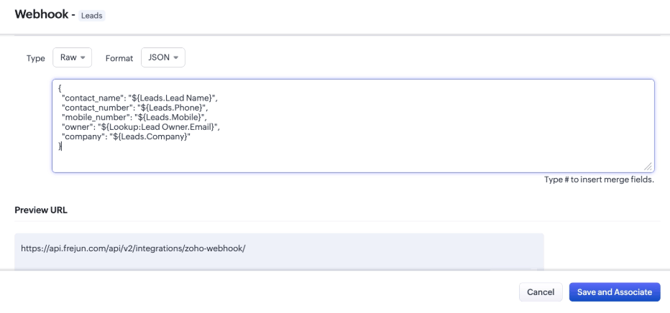
Step 7: Save the rule
Review the rule. It should look similar to the screenshot below. Click Save.
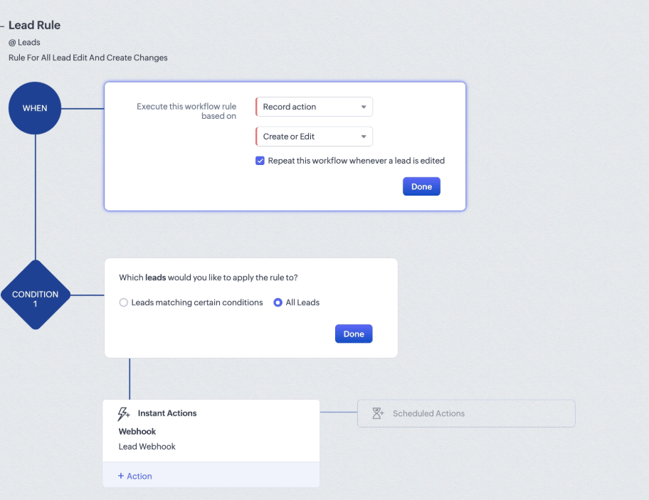
Your Leads sync is now live.
Part 2: Set up the webhook for Contacts
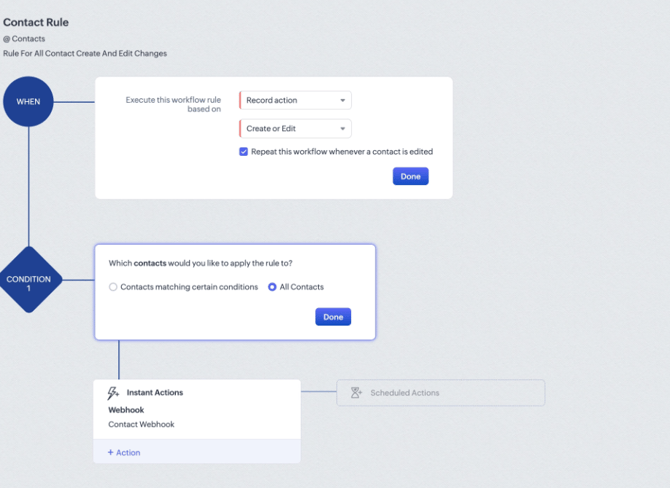
Repeat all the steps from Part 1, with these changes:
|
Setting |
Leads (Part 1) |
Contacts (Part 2) |
|---|---|---|
|
Module |
Leads |
Contacts |
|
Trigger option |
Repeat this workflow whenever a Lead is edited |
Repeat this workflow whenever a Contact is edited |
|
Condition |
All Leads |
All Contacts |
|
Webhook URL |
Same |
Same |
Use this JSON in the webhook Body (Raw / JSON):
{ "contact_name":"${Contacts.Contact Name}", "contact_number":"${Contacts.Phone}", "mobile_number":"${Contacts.Mobile}", "owner":"${Lookup:Contact Owner.Email}" } 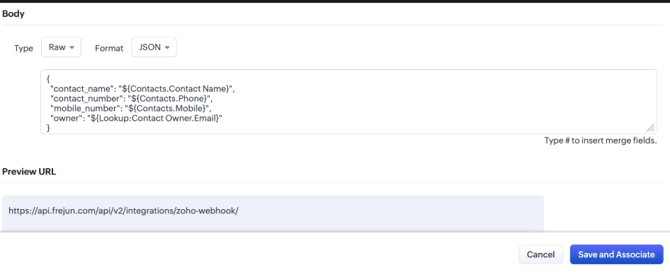
Click Save. The completed rule should look like this:
Important: Phone vs. Mobile number
In the JSON body:
contact_numbercomes from the Zoho CRM Phone fieldmobile_numbercomes from the Zoho CRM Mobile field
FreJun gives priority to contact_number (the Phone field).
If your team saves all numbers only in the Mobile field, remove the contact_number line from the JSON body so FreJun uses the Mobile number.
For Leads, remove:
"contact_number":"${Leads.Phone}",For Contacts, remove:
"contact_number":"${Contacts.Phone}",Tip: After removing the line, check that the JSON is still valid: every line except the last one should end with a comma.
Check that it's working
- Create a test Lead (or Contact) in Zoho CRM with a phone number.
- Open FreJun and search for that contact. It should appear within a few moments.
- Edit the record in Zoho CRM (for example, change the name) and confirm the change shows up in FreJun.
Troubleshooting: contacts are not syncing
You can check whether Zoho CRM sent the webhook from the workflow rule's usage log.
- Go to Settings → Automation → Workflow Rules.
- Hover over your FreJun workflow rule.
- Click the three dots (⋮).
- Select View Usage.
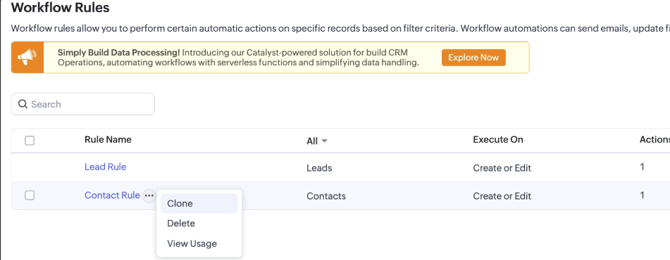
From the usage log you can:
- See the webhook's execution history
- View the reason for any failure
- Retry failed webhook calls manually
Common things to check:
- Wrong number showing in FreJun: Make sure numbers are in the field FreJun expects. See Phone vs. Mobile number above.
- Webhook failing: Confirm the method is
POST, the URL is exactly as shown in Step 5, and the body type is Raw / JSON. - Only Leads sync, not Contacts (or the other way round): Make sure you created a separate rule for each module.
- Edits don't sync: Make sure Create or Edit is selected and Repeat this workflow whenever a Lead/Contact is edited is turned on.
Still need help?
If contacts still aren't syncing, contact the FreJun Support team. Include a screenshot of the View Usage log and the failure reason shown there so we can help you faster.