Steps to Retrieve the Call ID
Step 1 — Open the Call Logs Page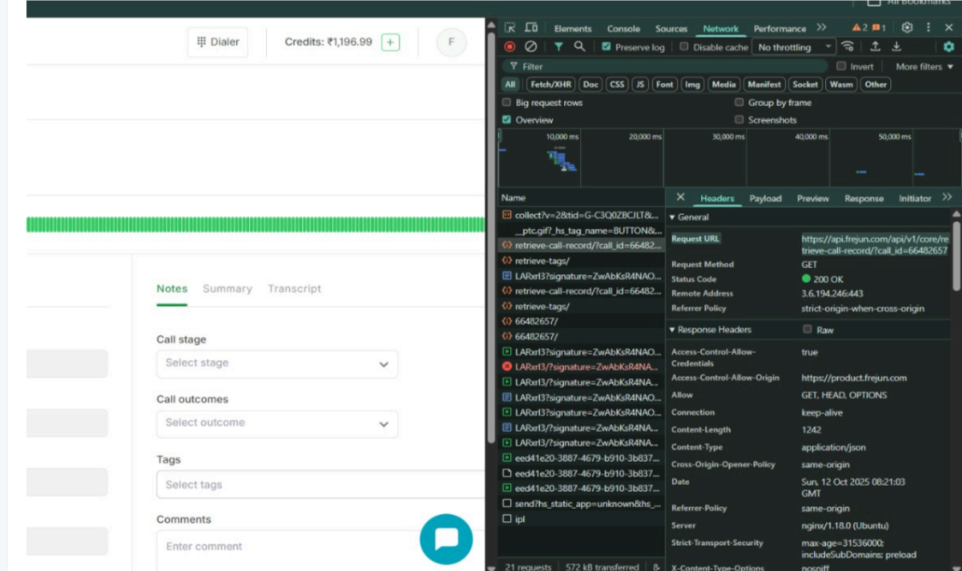
Step 1 — Open the Call Logs Page
Log in to your FreJun dashboard and navigate to the Call Logs page.
Step 2 — Open Browser Developer Tools- Right-click anywhere on the Call Logs page.
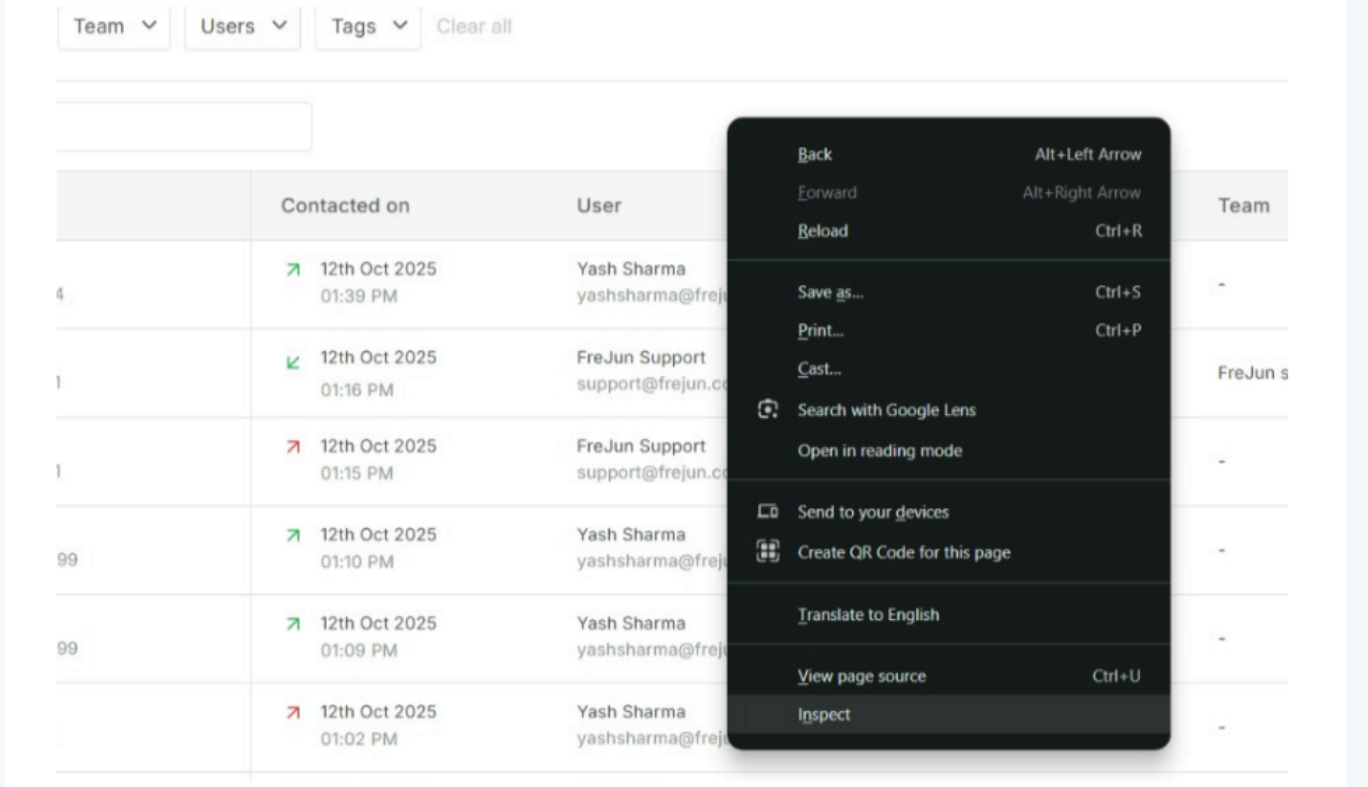
- Select "Inspect" from the context menu (or press F12 on your keyboard).
- In the panel that opens, click on the "Network" tab.
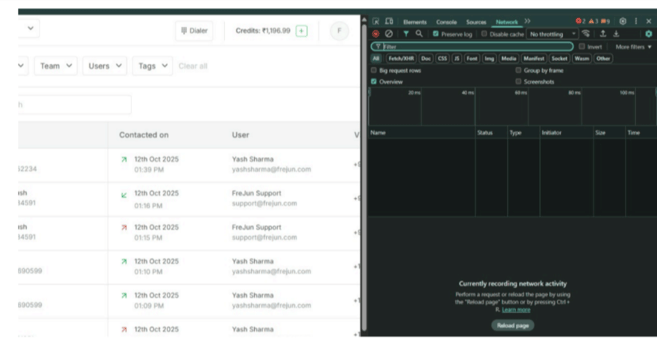
- Stay on the Call Logs page with the Network tab open.
- Find the specific call you want to report and click the "View Recording" option for that call.
- You will see new requests appear in the Network tab.
- In the Network tab, look for a request labeled "retrieve call recording".

- Click on that request to open its details.
- Copy the full "Request URL" shown — it contains the Call ID embedded within it.
|
Tip - If you do not see any requests in the Network tab, reload the page (press F5 or Ctrl+R) to populate the network activity. |