
1. Where to Find It ?
Settings > Account > Data Retention
This tab also includes Two-Factor Authentication and Private Recording, all consolidated under one privacy-focused section.
2. How to Set a Data Retention Policy
Step 1: Log in to your FreJun account at product.frejun.com
Step 2: Go to Settings > Account > Data Retention
Step 3: Click the dropdown next to Call Recordings or Transcripts & AI(these are configured independently)
Step 4: Select a retention period — 7 / 30 / 60 / 90 / 365 days
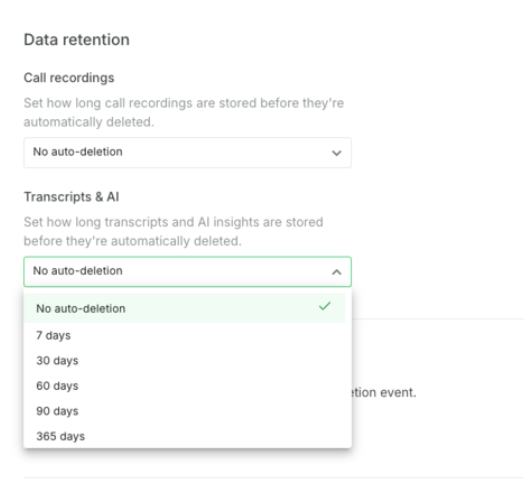
Step 5: A confirmation modal will appear — enter the OTP sent to your registered email
Step 6: Click Confirm Change
A confirmation email will be sent after every policy change. The change is also recorded in the Audit Log.
3. How Automatic Deletion Works
- Deletion is rolling — each day, recordings and/or AI insights older than your configured period are automatically removed
- Call Recordings and Transcripts & AI follow independent policies — you can set different windows for each
- Default setting for both is No Auto-deletion — no existing data is affected until you explicitly set a policy
- Auto-deletion runs nightly: Call Recordings ~3:00 AM, AI Insights ~3:30 AM
- Deletions are permanent — there is no archive or recovery option
4. Manual Deletion
Users with the appropriate permissions can manually delete recordings or AI insights at any time. Manual deletions are processed shortly after the action, with a small processing delay. All manual deletions are captured in the Audit Log.
5. Audit Log
All retention-related activity is recorded in the Audit Log under the same Privacy & Security tab.
Each entry includes:
- Timestamp — date and time of the event
- Event Type — auto-deletion, policy change, or manual deletion
- Triggered By —
Systemfor auto-deletions, or the specific user for manual actions - Reference ID — unique ID for each event
The Audit Log can be exported to CSV for compliance reporting.
5. Access & Permissions
- Data Retention settings are accessible to Owners only by default
- Owners can grant access to Admins or other roles via Settings → Roles
- Audit Log visibility is governed by the user's role
Frequently Asked Questions
A. Can deleted data be recovered?
No. Deletion is permanent. Please configure your retention policy carefully — the OTP confirmation step is in place to prevent accidental changes.
B. Are Call Recordings and AI Insights deleted together?
No. They are independent — you can set different retention windows for each data type.
C. What happens if a recording is being played when auto-deletion runs?
If already loaded, playback may continue. Any new attempt to access the recording after deletion will fail.
D. Will I be notified when a policy change is made?
Yes — a confirmation email is sent to the account Owner every time a retention policy is changed.
E. What if I don't see Data Retention in my settings?
The feature hasn't been enabled for your account yet. Email support@frejun.com to request activation.
For more queries, reach out to us at support@frejun.com or via Live Chat through your FreJun account.